What is SwiftGet?
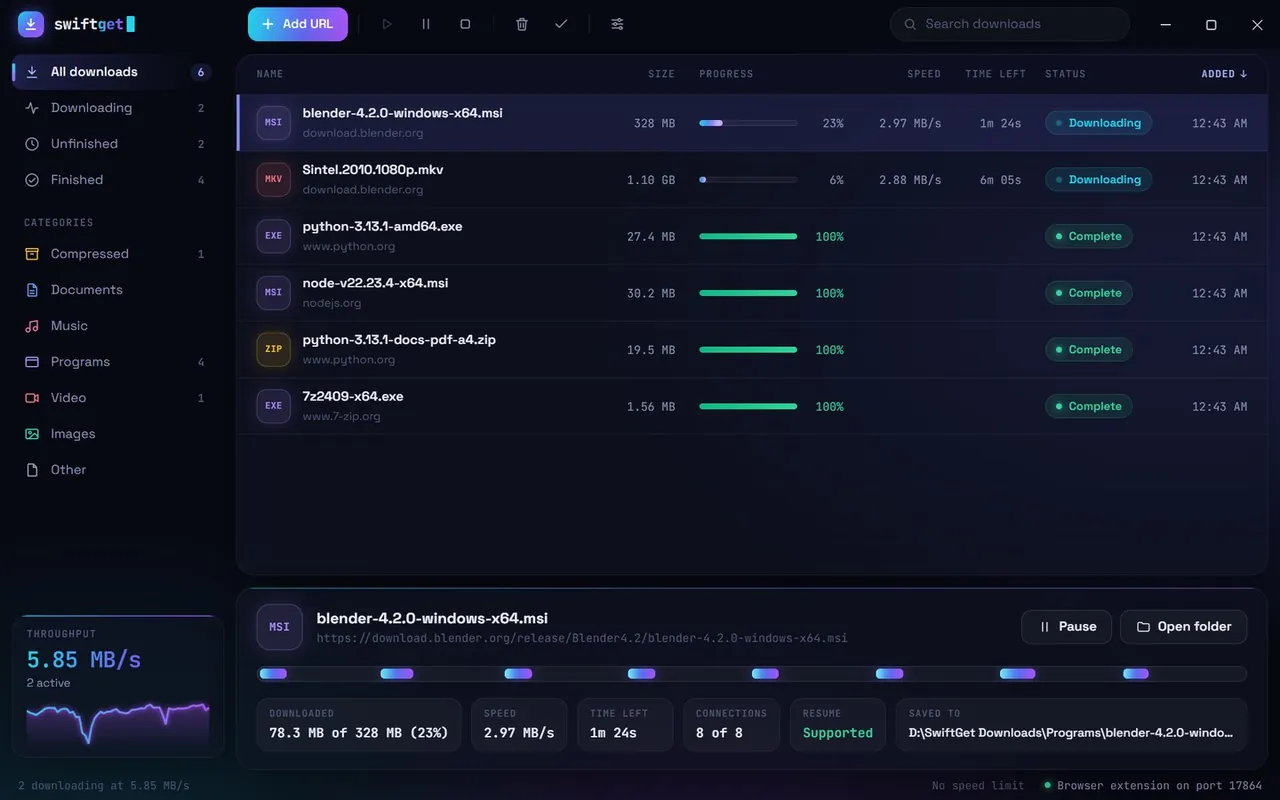
A browser downloads a file over one connection. SwiftGet opens several at once, each fetching its own part of the file, and when one part finishes early it splits the largest part that is left so every connection stays busy until the end.
Downloads survive real life. Pause one and resume it tomorrow, lose your Wi-Fi, or shut the PC down halfway through: SwiftGet saves its progress every few seconds and carries on from the same byte. If a server drops a connection it retries on its own, and if a server limits connections it uses fewer instead of failing.
Add a link the way that suits you: paste it, drop it on the window, copy it anywhere on your PC, or let the browser extension for Chrome and Edge hand downloads over, cookies included, so files behind a login download too.
Features
Up to 32 connections
Each file is split into parts that download in parallel, and idle connections take over half of the slowest part.
Pause and resume anything
Progress is saved every few seconds, so downloads continue after a pause, a dropped connection or a restart.
Browser integration
A Chrome and Edge extension catches the file types you choose and adds "Download with SwiftGet" to the right-click menu.
Queue and speed limit
Choose how many downloads run at once and cap the total speed so the rest of the house can still stream.
Tidy folders
Finished files land in Video, Music, Programs, Compressed and Documents folders automatically.
See every connection
A live map shows what each connection is fetching, next to speed, time left and a throughput graph.
How it works
Install SwiftGet
Run the installer, choose a folder, and SwiftGet opens ready to use.
Add a link
Paste it, drop it on the window, or let the browser extension send it. SwiftGet checks the size and resume support first.
Let it run
Watch the connections fill in, or close the window; SwiftGet keeps going from the tray and tells you when it is done.
Who it is for
SwiftGet is for anyone who downloads big files on Windows: ISO images, games and installers, videos, course material, or anything on a connection that drops now and then.